
-
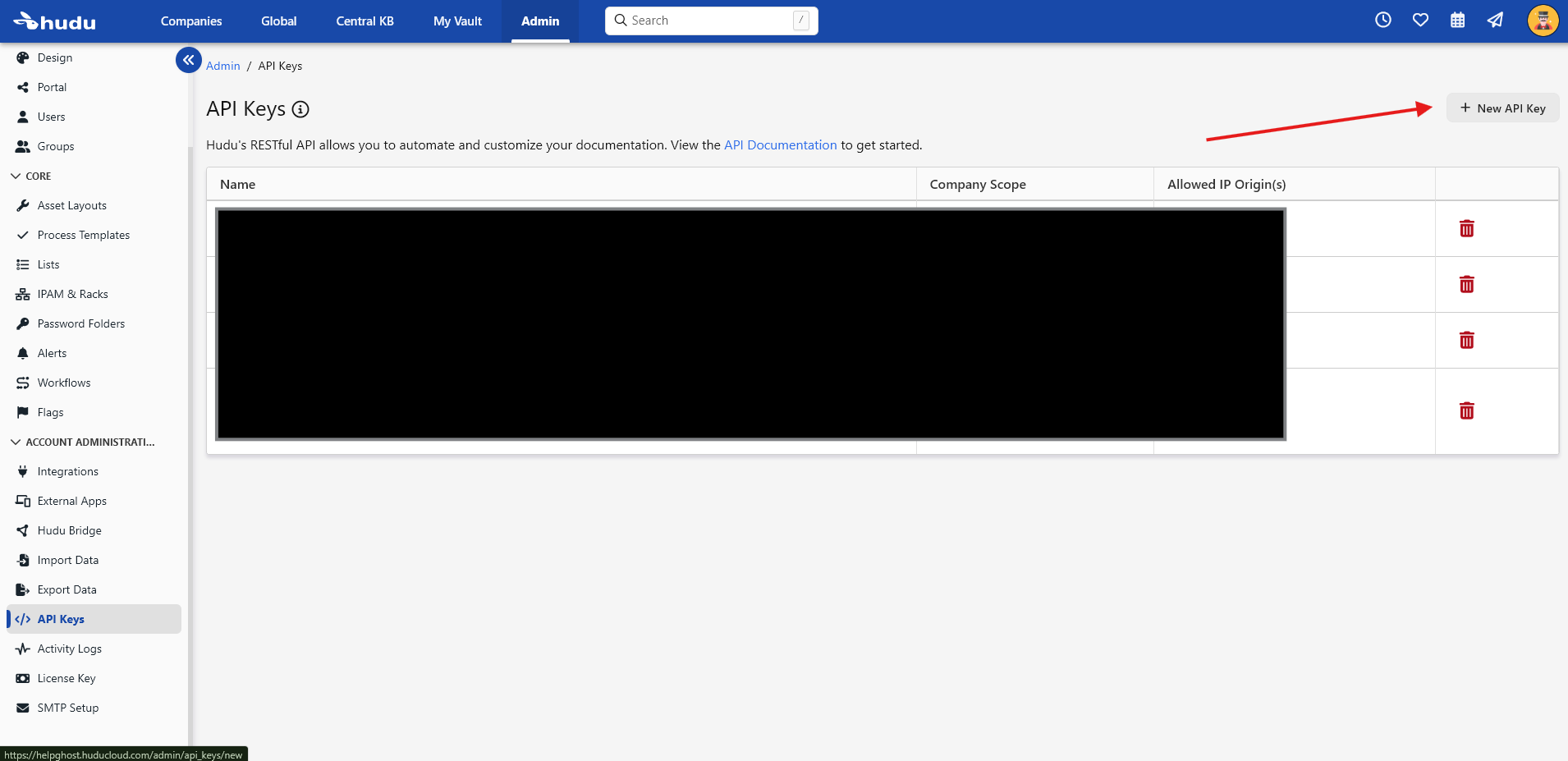
In Hudu navigate to Admin Page > API Keys > New API Key
-
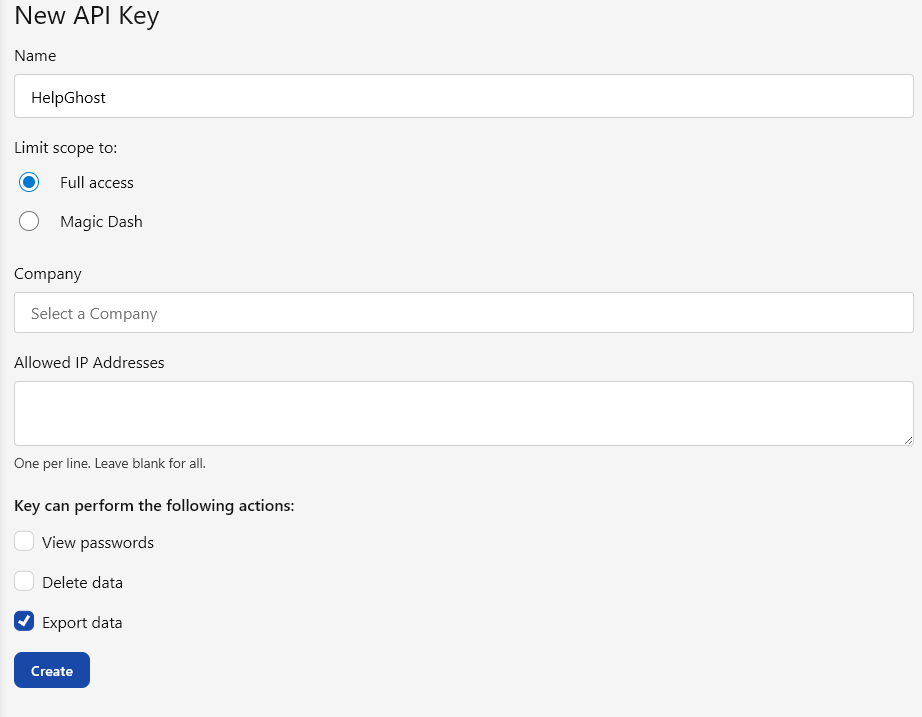
Enter “HelpGhost” for Name
-
Limit scope to: Full Access
-
Company “Leave Blank”
-
Mark “Export Data” under “Key can perform the following actions”
-
-
Copy the API Key generated in Hudu and continue to add it to HelpGhost
-
In HelpGhost Navigate to Settings > Integrations
-
Activate Hudu under KnowledgeBase Integrations
-
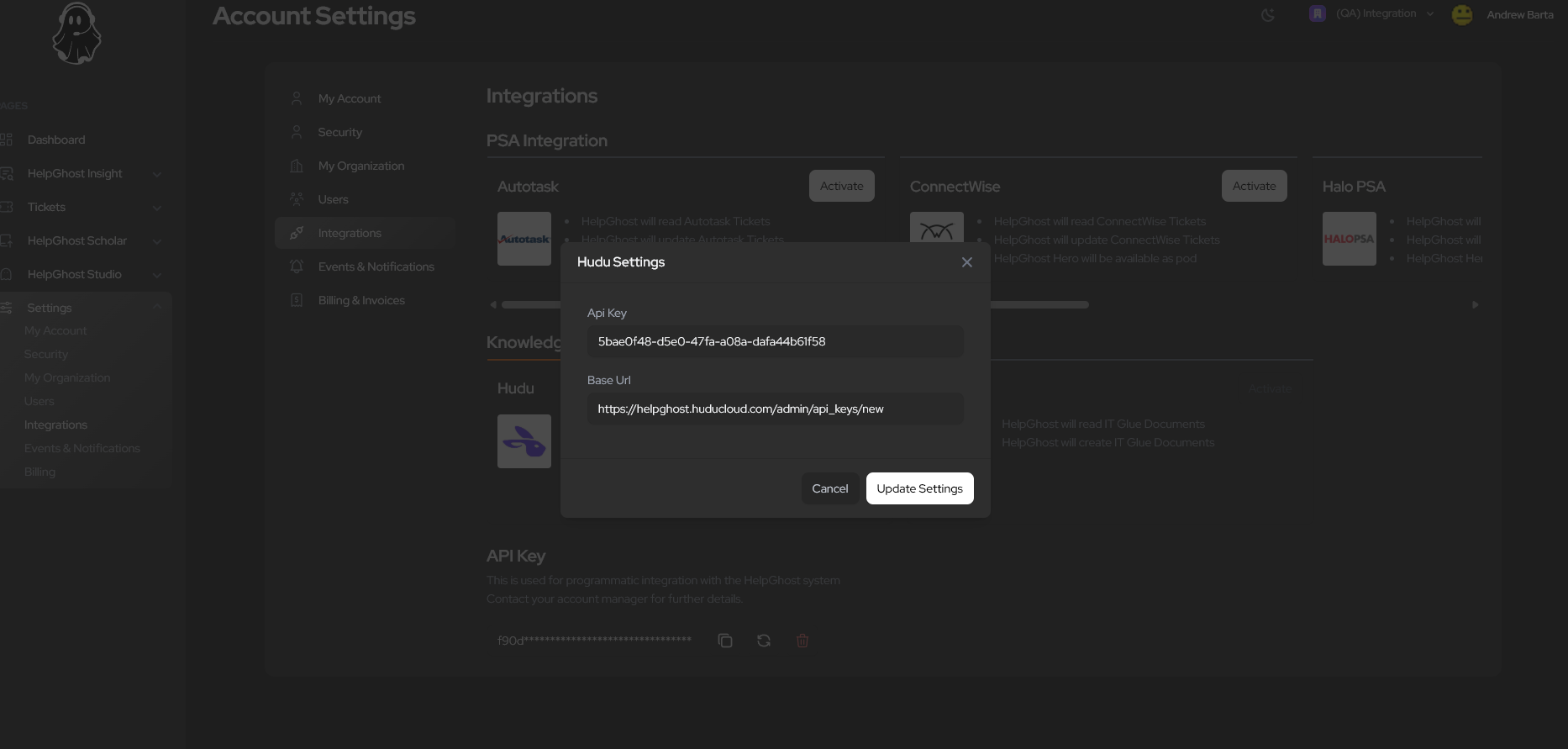
Click “Hudu Settings”
-
Paste API Key from step 2
-
Copy the url from your Hudu environment and past in “Hudu Settings”
-
Usually (company name).huducloud.com
-
HelpGhost will filter out any url params, so you are safe to copy the entire url
-
-
-
Navigate to HelpGhost Scholar > Data Sources in order to add Hudu documents and sources
-
See (Coming Soon) for further details on Scholar Data Sources
-